

207Q00000X- Family Medicine208D00000X- General Practice207R00000X- Internal Medicine207RC0000X- Cardiovascular Disease
Provider Information Setup
The first step in creating your provider profile is completing the Provider Information form. This establishes the foundational details that will be used throughout your PriceMedic experience.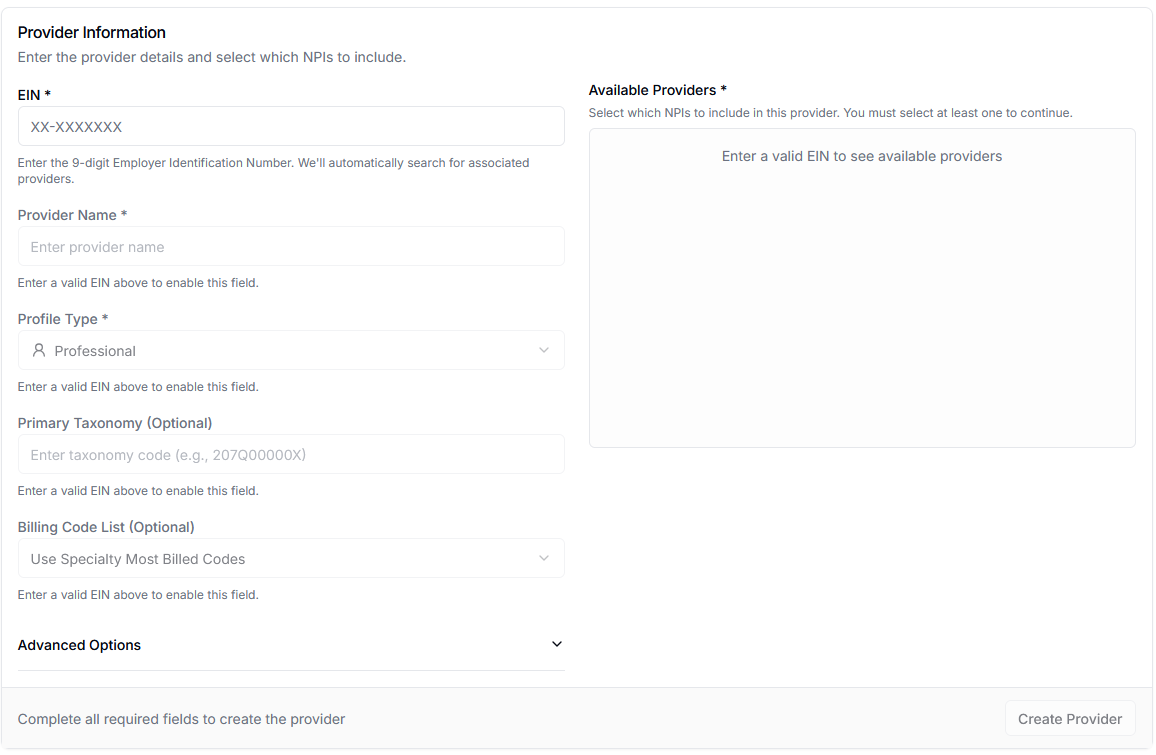
Required Information
EIN (Employer Identification Number)
1
Enter Your 9-Digit EIN
Input your organization’s 9-digit Employer Identification Number in the format XX-XXXXXXX
2
Automatic Provider Search
Once you enter a valid EIN, PriceMedic will automatically search for associated providers and NPIs
The EIN is required and must be valid to proceed. This number links your profile to the correct organizational entity for rate transparency data.
Provider Name
Enter the complete legal name of your practice or organization exactly as it appears on official documents and contracts.Profile Type
Select the appropriate profile type for your organization:What You’ll Need
Before starting the setup process, gather the following information:Essential Information
- 9-digit Employer Identification Number (EIN)
- Access to select the correct provider from available NPIs
Suggested Data
- Primary taxonomy (suggested from NPI registry)
- Provider name (suggested from selected NPI)
- Billing codes (suggested based on specialty)
- Profile type (suggested from provider type)
Most information will be automatically populated once you select a provider, so you primarily need your EIN and knowledge of which provider/NPI to select.
Available Providers (NPI Selection)
After entering a valid EIN, you’ll see a list of National Provider Identifiers (NPIs) associated with your organization.NPI Selection Requirements
- Minimum Selection: You must select at least one NPI to continue
- Multiple NPIs: Select all relevant NPIs for comprehensive data coverage
- Provider Verification: Ensure selected NPIs represent active providers in your organization
1
Review Available NPIs
Check the list of NPIs that appear after EIN entry
2
Select Relevant Providers
Choose NPIs for providers you want included in your profile analysis
3
Verify Selection
Confirm your selections include all active providers billing under this EIN
Suggested Values After Provider Selection
Once you enter a valid EIN and select a provider, PriceMedic suggests values for taxonomy, billing codes, profile type, and provider name based on the registered NPI data. These are starting suggestions, not fixed selections, you can accept or change any of them before creating the profile. Your suggestions will differ depending on which provider you select.
What Gets Suggested
After selecting an NPI from the Available Providers list:- Primary Taxonomy: Automatically filled with the provider’s registered taxonomy code
- Provider Name: May be updated with the specific provider’s name
- Billing Code List: Populated based on the provider’s specialty and historical billing patterns
- Profile Type: Confirmed based on the provider type in the NPI registry
Primary Taxonomy (Suggested)
Common Physician Taxonomy Codes
When a provider is selected, you may see taxonomy codes like:Primary Care Specialties
Primary Care Specialties
Surgical Specialties
Surgical Specialties
208600000X- Surgery2086S0120X- Plastic Surgery2086X0206X- Surgical Oncology2085R0202X- Reproductive Endocrinology
Medical Specialties
Medical Specialties
207V00000X- Obstetrics & Gynecology207X00000X- Orthopaedic Surgery208C00000X- Colon & Rectal Surgery207T00000X- Neurological Surgery
Billing Code List (Suggested)
Specialty-Based Auto-Selection
The system automatically selects the most appropriate billing codes based on:- Provider Taxonomy: Codes relevant to the selected provider’s specialty
- Historical Data: Common procedures for similar providers
- Specialty Standards: Industry-standard codes for the practice type
Form Completion Process
Step-by-Step Workflow
1
Enter EIN
Input your 9-digit Employer Identification Number to search for associated providers
2
Select Provider
Choose the appropriate NPI from the Available Providers list
3
Verify Auto-Populated Data
Review the automatically filled fields (taxonomy, billing codes, etc.)
4
Complete Any Remaining Fields
Fill in any fields that weren’t auto-populated
5
Create Provider Profile
Click “Create Provider” to finalize your profile
Required Fields Only
All fields in the form are required for profile creation:- ✅ EIN: Valid 9-digit number
- ✅ Provider Name: Auto-populated or manually entered
- ✅ Profile Type: Professional (for physicians)
- ✅ Available Providers: At least one NPI selected
- ✅ Primary Taxonomy: Auto-populated when provider is selected
- ✅ Billing Code List: Auto-populated based on provider specialty
Creating Your Provider Profile
Once all required information is entered:- Review Information: Double-check all entered data for accuracy
- Click “Create Provider”: Submit the form to generate your profile
- Profile Processing: System will process and validate your information
- Access Confirmation: You’ll receive confirmation when the profile is ready
Profile creation may take a few minutes as the system processes your information and begins collecting relevant rate transparency data.
Next Steps
After successfully creating your provider profile:Competitor Selection
Configure your competitive benchmarks for market analysis
Common Issues and Troubleshooting
EIN Not Recognized
EIN Not Recognized
- Verify the 9-digit format is correct
- Ensure the EIN is for a healthcare organization
- Contact support if the EIN should be recognized but isn’t found
No Available Providers Found
No Available Providers Found
- Confirm the EIN is correct
- Verify providers have active NPIs
- Check that NPIs are properly associated with the EIN
Invalid Taxonomy Code
Invalid Taxonomy Code
- Ensure the code starts with “2” (physician codes only)
- Verify the 10-digit format:
2XXXXXXXXX - Check the code against the NUCC taxonomy database
Need Help?
Support Documentation
Access detailed setup guides and FAQs
Contact Support
Get personalized assistance with profile creation