

Accessing the Creation Form
There are two ways to create a new provider profile:Option 1: Via Provider Search

- Navigate to Provider Search from the Your Organization section in the sidebar
- Search for the provider you want to add by name or EIN
- Click on a provider from the search results to view their details
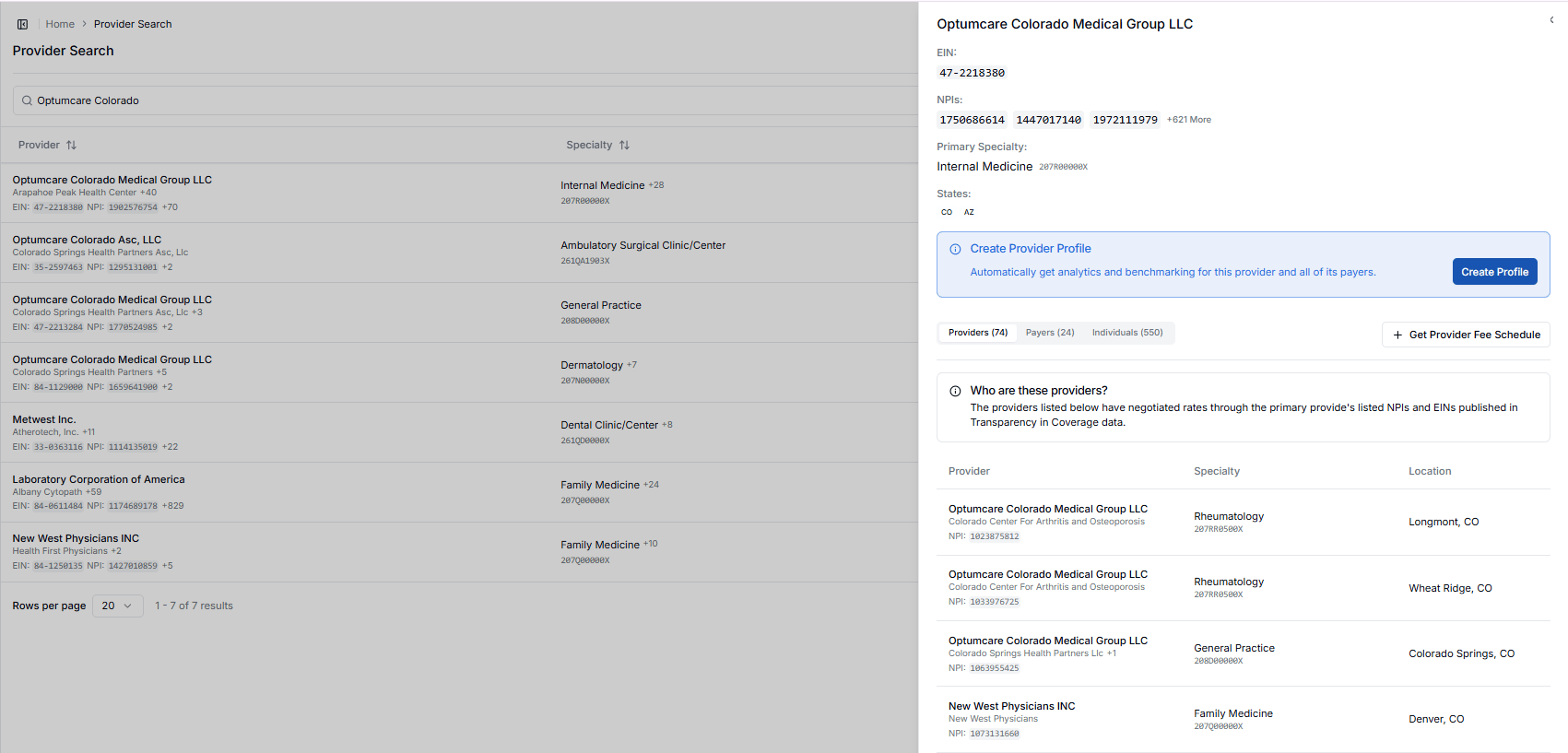
- Click Create Provider Profile to open the creation form
Option 2: Via Sidebar
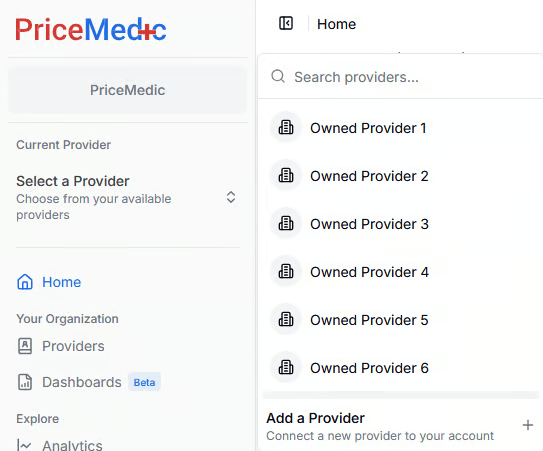
- Click on the Current Provider selector at the top of the sidebar
- Click Add a Provider at the bottom of the provider list
- This will open the provider creation form
Creating Your Provider Profile
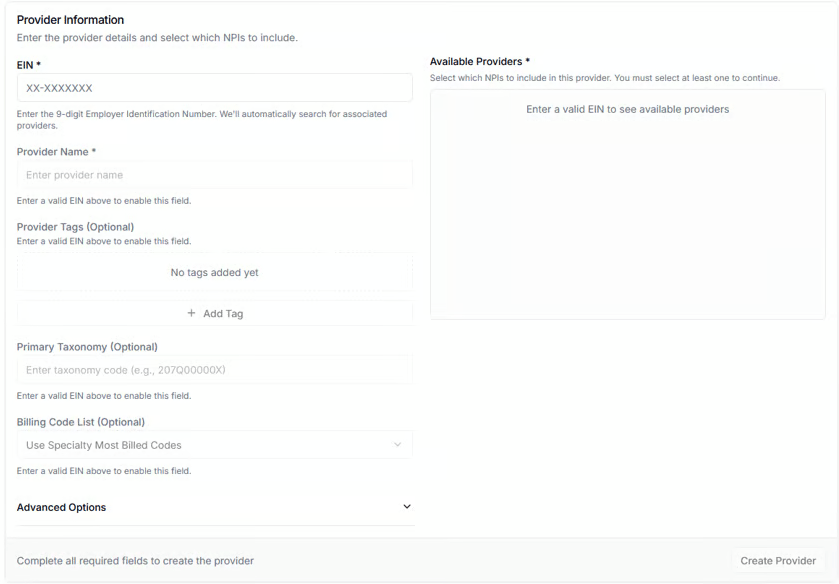
Required Fields
EIN (Employer Identification Number) Enter the 9-digit Employer Identification Number. Once entered, the system will automatically search for all providers associated with this EIN. Affiliated Organizations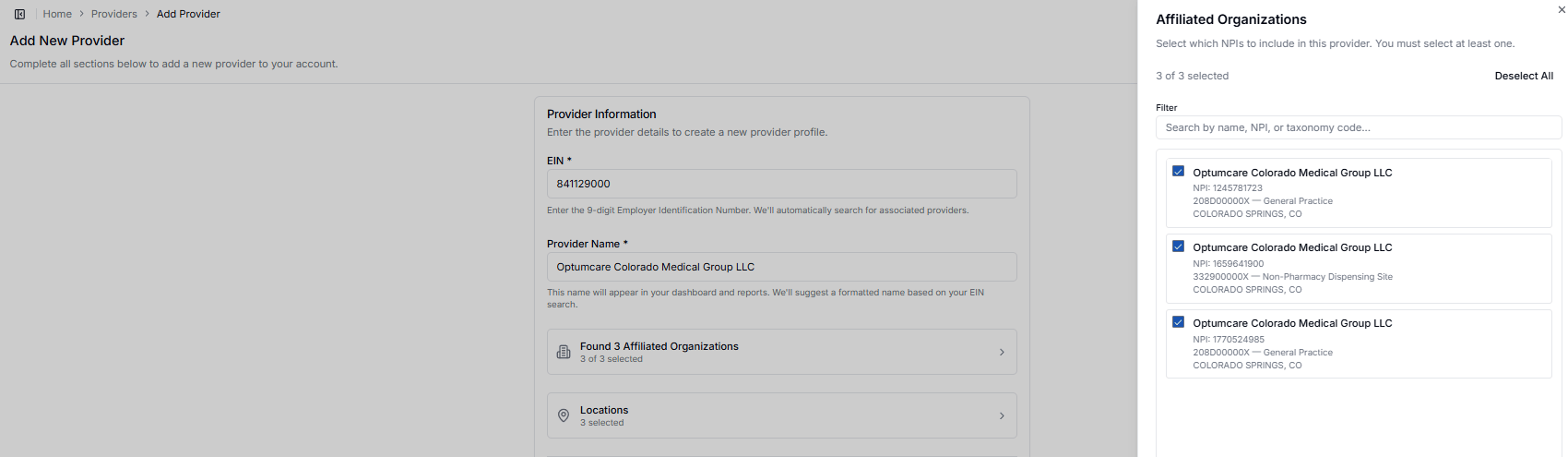
Optional Fields
Primary Taxonomy The taxonomy code determines the provider’s specialty classification. This is used to:- Identify the most commonly billed codes for this specialty
- Match with appropriate competitors in the same specialty
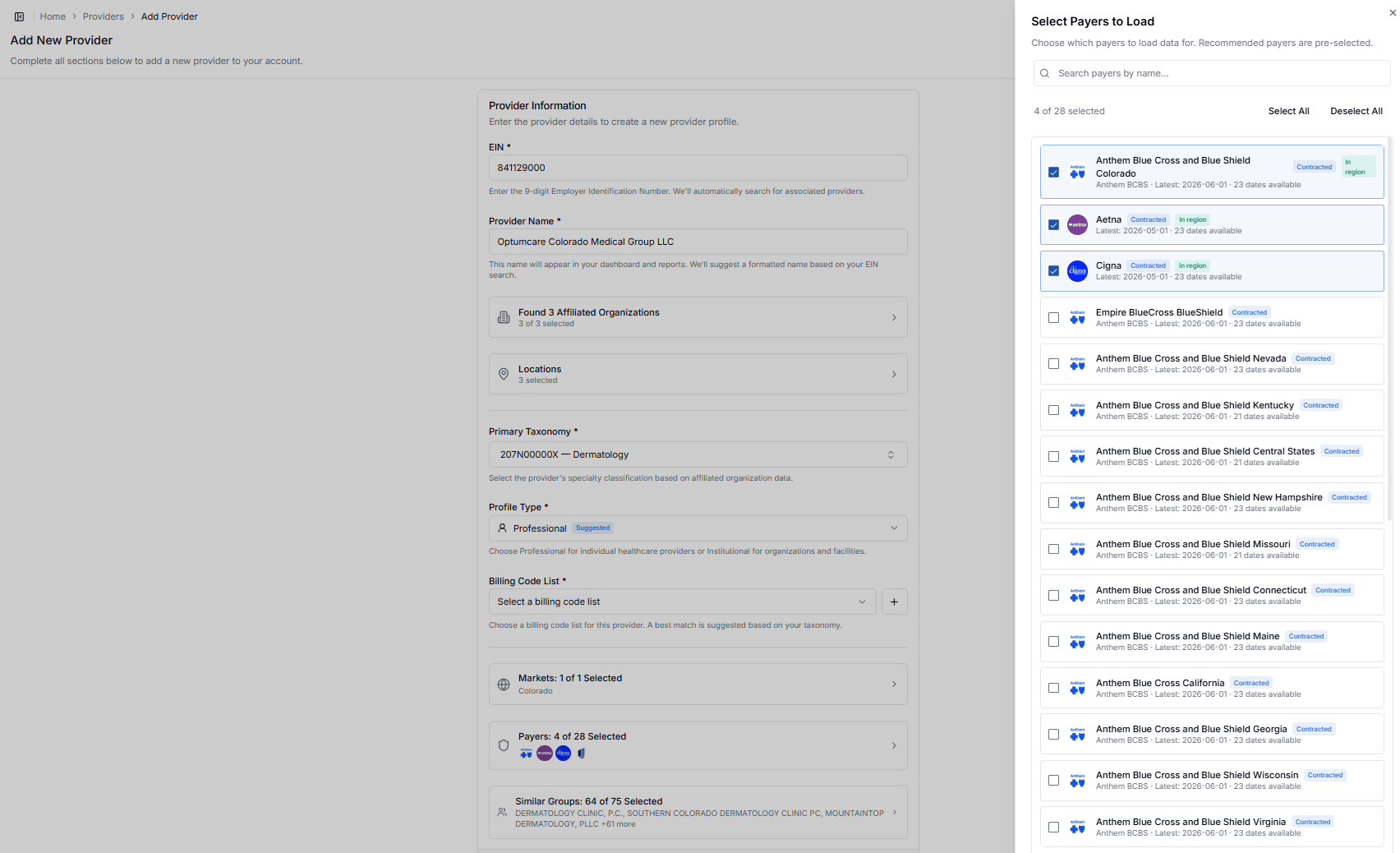
- Contracted indicates the provider has a contract with that payer.
- In region flags payers active in the provider’s market.
- The detail line shows the most recent data date and how many dates are available (for example, “Latest: 2026-06-01 · 23 dates available”).
- Use the search bar to find a specific payer by name.
- Check or uncheck any payer to add or remove it, or use Select All / Deselect All.
- The counter (for example, “4 of 28 selected”) shows how many payers are currently loaded.
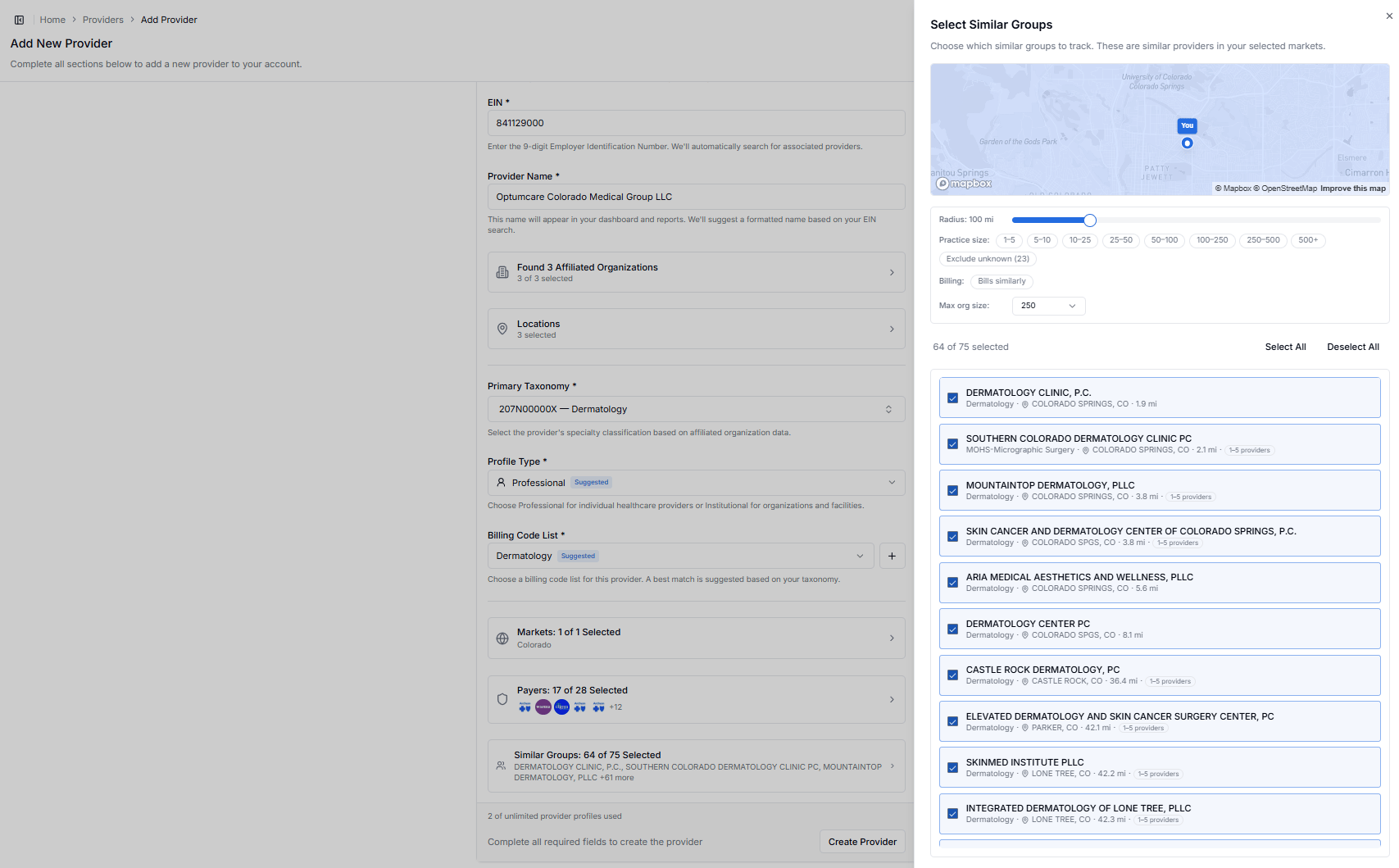
- Radius: distance from the subject practice (drag the slider).
- Practice size: limit to specific size bands, from 1-5 providers up to 500+.
- Billing: select Bills similarly to keep only providers with a comparable billing profile.
- Exclude unknown: drop providers whose size or details can’t be confirmed.
- Max org size: cap the largest organizations included in the set.