> ## Documentation Index
> Fetch the complete documentation index at: https://docs.pricemedic.com/llms.txt
> Use this file to discover all available pages before exploring further.
# Billing Codes
> Configure billing code lists for your provider profile
## Overview
Billing code lists help you organize and manage the codes relevant to your practice. You can create custom lists to tailor reimbursement insights and ensure accurate billing configurations.
**Importance of Billing Codes**: These codes determine which procedures you'll be compared on. For example, selecting cardiology codes means your statistics, percentiles, and benchmarks will be based on cardiology procedure rates.
## Creating a Billing Code List
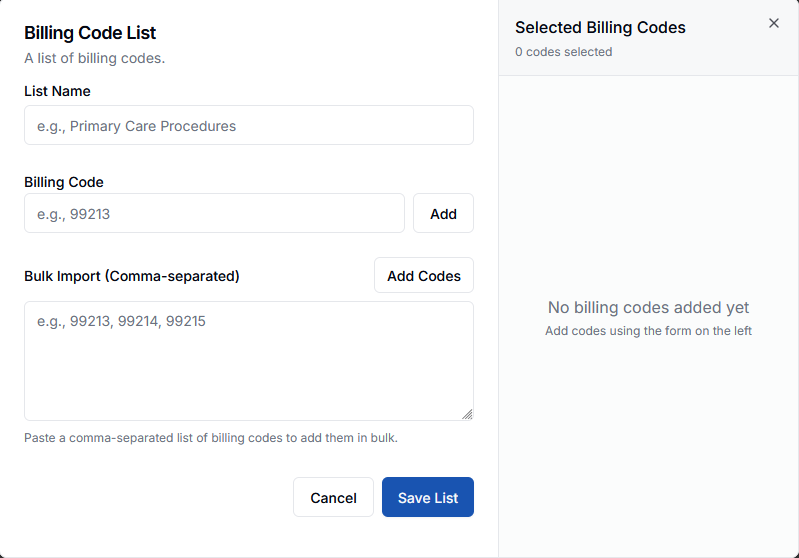 To create a new billing code list:
1. Click **Create List** from the Billing Code Lists page
2. Enter a **List Name** (e.g., "Orthopedic Surgery Procedures")
3. Add billing codes using either method:
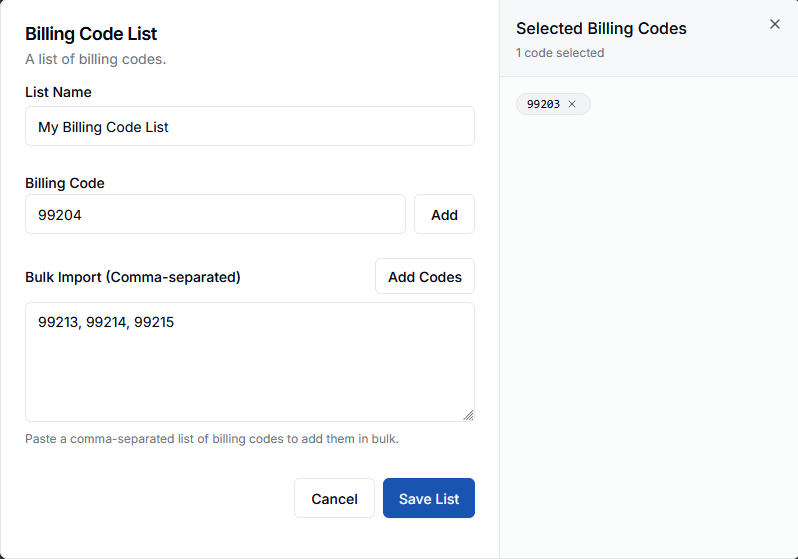
* **Individual codes**: Enter a single code and click **Add**
* **Bulk import**: Paste comma-separated codes (e.g., `99213, 99214, 99215`) and click **Add Codes**
4. Review selected codes in the right panel
5. Click **Save List** to create your list
To create a new billing code list:
1. Click **Create List** from the Billing Code Lists page
2. Enter a **List Name** (e.g., "Orthopedic Surgery Procedures")
3. Add billing codes using either method:
* **Individual codes**: Enter a single code and click **Add**
* **Bulk import**: Paste comma-separated codes (e.g., `99213, 99214, 99215`) and click **Add Codes**
4. Review selected codes in the right panel
5. Click **Save List** to create your list
 ## Managing Lists
All your billing code lists appear in the "All Billing Code Lists" section. Each list displays:
* List name and description
* Number of billing codes included
* **Activate** button to enable the list for your provider profile
## Managing Lists
All your billing code lists appear in the "All Billing Code Lists" section. Each list displays:
* List name and description
* Number of billing codes included
* **Activate** button to enable the list for your provider profile
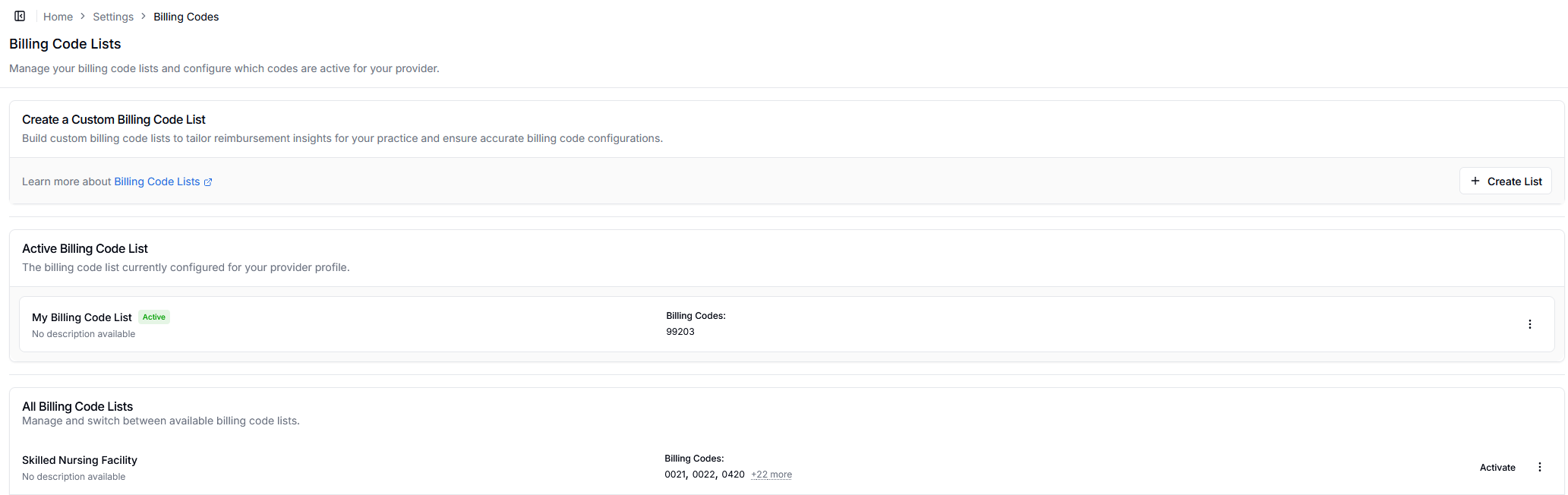 You can switch between available billing code lists to match different specialties or use cases for your practice.
**Updating a List**: Click the three dots (⋮) next to any billing code list and select **Update List** to reopen the creation pop-up where you can add or remove codes.
You can switch between available billing code lists to match different specialties or use cases for your practice.
**Updating a List**: Click the three dots (⋮) next to any billing code list and select **Update List** to reopen the creation pop-up where you can add or remove codes.