> ## Documentation Index
> Fetch the complete documentation index at: https://docs.pricemedic.com/llms.txt
> Use this file to discover all available pages before exploring further.
# Upload a Contract
> Learn how to upload contract documents to PriceMedic
 ## Basics
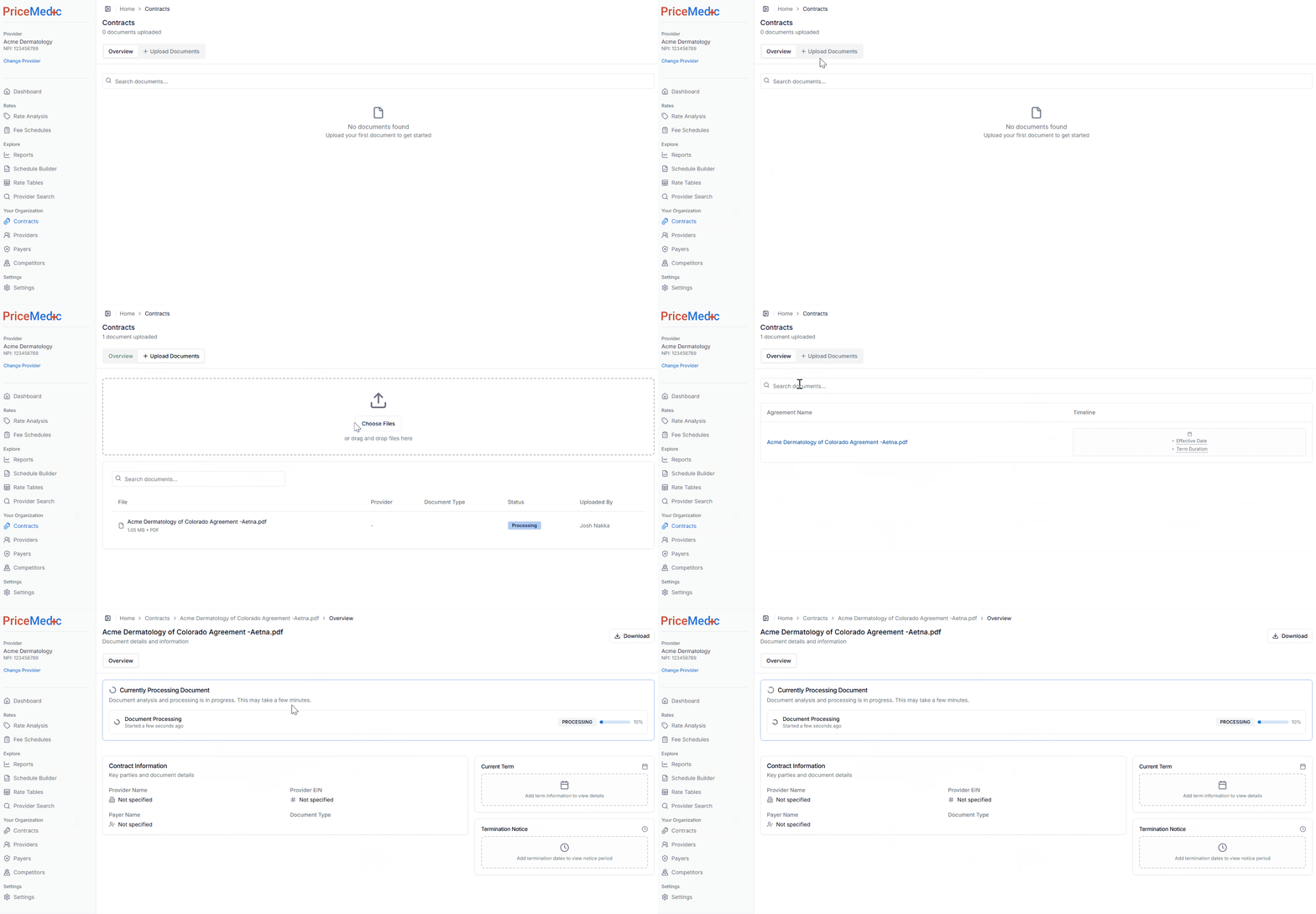
Upload your payer contracts to begin analyzing their terms and provisions. PriceMedic supports various document formats and uses intelligent processing to extract key contract information automatically.
Click **Upload Documents** to begin the upload process. You can upload multiple contracts at once for batch processing.
Supported file formats include PDF, DOCX, DOC, TXT, and image files (PNG, JPG). Maximum file size is 50MB per document.
## Upload Process
### Step 1: Select Files
* Click **Upload Documents** or drag and drop files into the upload area
* Select one or multiple contract files from your computer
* Supported formats: PDF, DOCX, DOC, TXT, PNG, JPG
* Maximum file size: 50MB per document
### Step 2: Processing
Once uploaded, PriceMedic will:
* **Extract text** from the document using OCR if needed
* **Identify key provisions and dates** using AI-powered analysis
* **Structure the data** for easy review and editing
Processing time varies based on document size and complexity. Large contracts may take several minutes to process completely.
## Upload Best Practices
* **Use clear, high-quality scans** for image-based documents
* **Ensure text is readable** and not heavily redacted
* **Organize files** with descriptive names before upload
Establish consistent naming patterns for easy organization:
* `[Payer]_[EffectiveDate]_[ContractType].pdf`
* Example: `Aetna_2024-01-01_Professional.pdf`
When uploading multiple contracts:
* **Group by payer** for easier data entry
* **Compress files** into a ZIP archive if needed, allowing for a single upload action
## Supported Contract Types
### Professional Contracts
* Physician services and professional fees
* Outpatient procedures and consultations
* Professional component of split billing
### Institutional Contracts
* Hospital and facility services
* Inpatient care and room charges
* Technical component of procedures
### Comprehensive Contracts
* Combined professional and institutional services
* Bundled payment arrangements
* Capitation agreements
## Common Upload Issues
**Problem**: File won't upload or shows format error
**Solutions**:
* Convert to supported format (PDF recommended)
* Reduce file size if over 25MB limit
* Save scanned documents as PDF rather than image files
**Problem**: Text extraction is incomplete or inaccurate
**Solutions**:
* Use higher resolution scans (300 DPI minimum)
* Ensure document is right-side up and properly aligned
* Consider re-scanning poor quality documents
**Problem**: Document is taking too long to process
**Solutions**:
* Check document size and complexity
* Wait for processing to complete before uploading additional files
* Contact support if processing exceeds 10 minutes
## Security and Privacy
PriceMedic maintains strict security standards for contract documents:
* **Encryption**: All uploads are encrypted in transit and at rest
* **Access Control**: Only authorized users can view your contracts
* **Compliance**: HIPAA-compliant storage and processing
* **Retention**: Documents stored according to your organization's policies
## Next Steps
After uploading your contracts, proceed to [Update and View Provisions](/guides/contracts/02-update-view-provisions) to review and organize the extracted contract information.
Start with your most important or recent contracts to get familiar with the system before uploading your entire contract portfolio.
## Basics
Upload your payer contracts to begin analyzing their terms and provisions. PriceMedic supports various document formats and uses intelligent processing to extract key contract information automatically.
Click **Upload Documents** to begin the upload process. You can upload multiple contracts at once for batch processing.
Supported file formats include PDF, DOCX, DOC, TXT, and image files (PNG, JPG). Maximum file size is 50MB per document.
## Upload Process
### Step 1: Select Files
* Click **Upload Documents** or drag and drop files into the upload area
* Select one or multiple contract files from your computer
* Supported formats: PDF, DOCX, DOC, TXT, PNG, JPG
* Maximum file size: 50MB per document
### Step 2: Processing
Once uploaded, PriceMedic will:
* **Extract text** from the document using OCR if needed
* **Identify key provisions and dates** using AI-powered analysis
* **Structure the data** for easy review and editing
Processing time varies based on document size and complexity. Large contracts may take several minutes to process completely.
## Upload Best Practices
* **Use clear, high-quality scans** for image-based documents
* **Ensure text is readable** and not heavily redacted
* **Organize files** with descriptive names before upload
Establish consistent naming patterns for easy organization:
* `[Payer]_[EffectiveDate]_[ContractType].pdf`
* Example: `Aetna_2024-01-01_Professional.pdf`
When uploading multiple contracts:
* **Group by payer** for easier data entry
* **Compress files** into a ZIP archive if needed, allowing for a single upload action
## Supported Contract Types
### Professional Contracts
* Physician services and professional fees
* Outpatient procedures and consultations
* Professional component of split billing
### Institutional Contracts
* Hospital and facility services
* Inpatient care and room charges
* Technical component of procedures
### Comprehensive Contracts
* Combined professional and institutional services
* Bundled payment arrangements
* Capitation agreements
## Common Upload Issues
**Problem**: File won't upload or shows format error
**Solutions**:
* Convert to supported format (PDF recommended)
* Reduce file size if over 25MB limit
* Save scanned documents as PDF rather than image files
**Problem**: Text extraction is incomplete or inaccurate
**Solutions**:
* Use higher resolution scans (300 DPI minimum)
* Ensure document is right-side up and properly aligned
* Consider re-scanning poor quality documents
**Problem**: Document is taking too long to process
**Solutions**:
* Check document size and complexity
* Wait for processing to complete before uploading additional files
* Contact support if processing exceeds 10 minutes
## Security and Privacy
PriceMedic maintains strict security standards for contract documents:
* **Encryption**: All uploads are encrypted in transit and at rest
* **Access Control**: Only authorized users can view your contracts
* **Compliance**: HIPAA-compliant storage and processing
* **Retention**: Documents stored according to your organization's policies
## Next Steps
After uploading your contracts, proceed to [Update and View Provisions](/guides/contracts/02-update-view-provisions) to review and organize the extracted contract information.
Start with your most important or recent contracts to get familiar with the system before uploading your entire contract portfolio.